Yealink T7x Series: User Guide

This article assists you with your Yealink T7 (T73U, T73W, T74U, T74W, T77W) and T8( T85W, T87W, T88W, T88W Pro, T88V Pro) devices.
If you need assistance using your phone, please contact your administrator or support team.
Manufacturer resources are available from Yealink Support.
Phone Features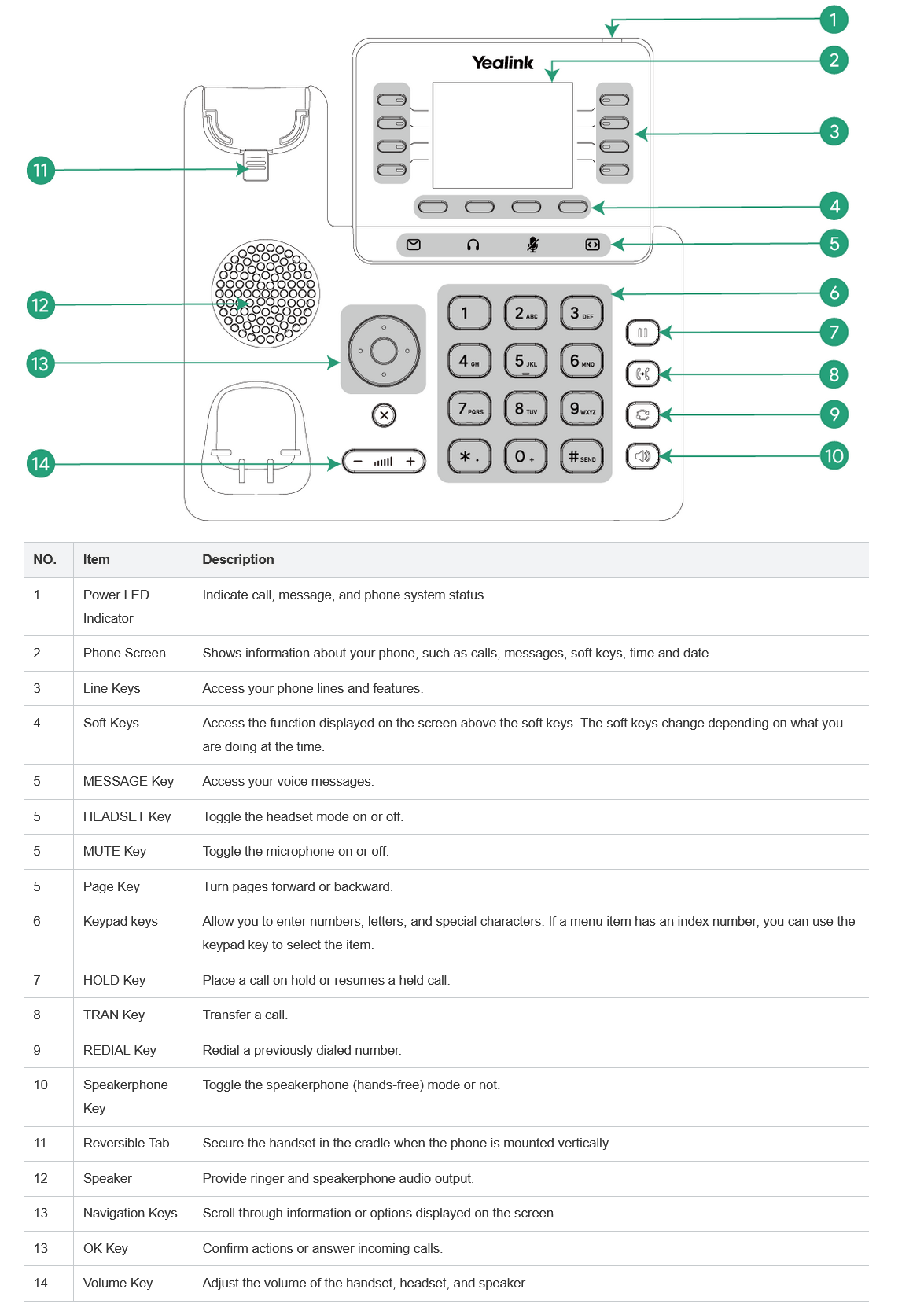
Handset: Used to place and answer calls privately.
Dial Pad: Used to dial numbers and enter characters.
Screen Display: Displays caller ID, time/date, active calls, line keys, and softkeys.
Line Keys: May be configured for extensions, speed dials, BLF monitoring, paging, or call park.
Softkeys: Functions change depending on the current phone activity.
Navigation Keys: Used to move through menus and select options.
Volume Buttons: Adjust handset, speaker, headset, and ringer volume.
MESSAGE: Access voicemail messages.
HOLD: Places the active call on hold.
MUTE: Mutes the microphone during calls.
TRANSFER: Transfers active calls to another extension or external number.
CONF: Starts a conference call.
REDIAL: Displays recently dialed calls.
Speakerphone: Enables hands-free calling.
Headset: Enables headset use when connected.
Connecting to Wi-Fi
- Open Menu or Settings.
- Navigate to Wi-Fi.
- Enable Wi-Fi.
- Select your wireless network.
- Enter the password.
- Confirm the network shows connected.
A network icon will appear once connected successfully.
Bluetooth Pairing
- Open Menu.
- Navigate to Bluetooth.
- Enable Bluetooth.
- Put the headset or device into pairing mode.
- Select the device from the available list.
- Confirm pairing.
Placing Calls
Handset: Lift the handset, dial the number, then press Send if needed.
Speakerphone: Dial the number and press Speaker or Send.
Headset: Press Headset, dial the number, then press Send.
Redial: Press Redial, select a recent call, then press Send.
Internal Extensions: Dial the extension and press Send.
Long Distance: Dial the full 10-digit number. +1 is typically not required.
International Calls: May be restricted by your administrator.
Answering & Ending Calls
Answering: Use the handset, Speaker, Headset, or Answer softkey.
Second Incoming Call: Press Answer to place the first call on hold and answer the new call.
Switching Calls: Use Swap, Resume, navigation arrows, or line keys.
Ending Calls: Hang up the handset or press End Call, Speaker, or Headset.
Hold & Mute
Mute: Press MUTE to disable your microphone. Press again to unmute.
Hold: Press HOLD or Hold to place a call on hold.
Resume: Press Resume or select the held line.
Call Park
Using Park Keys: Press a Park key during a call to park it. Press the flashing Park key to retrieve it.
Using Star Codes:
- Press TRANSFER.
- Dial *3.
- Listen for the parking spot number.
- Press TRANSFER again.
To retrieve the call, dial *3 followed by the parking spot number.
Example:
- *31
Transferring Calls
Blind Transfer: Press TRANSFER, dial the destination, then press TRANSFER again immediately.
Warm Transfer: Press TRANSFER, dial the destination, wait for answer, announce the caller, then press TRANSFER again.
Direct to Voicemail: Press TRANSFER, dial ** plus the extension, then press TRANSFER again.
Example:
- TRANSFER → **102 → TRANSFER
Conference Calls
- Press CONF during an active call.
- Dial the additional party.
- Wait for answer.
- Press CONF again to join all parties.
Multiple Calls
Use navigation arrows, Swap, Resume, or line keys to move between active and held calls.
Intercom
Dial *0 plus the extension, then press Send.
Example:
- *0105
The receiving phone will automatically answer over speakerphone.
Voicemail
Access from Your Phone: Press MESSAGE or dial *98.
Remote Access: Call your main number, press *, then enter your mailbox and PIN.
Voicemail Indicator: The message light flashes when new voicemail is received.
Voicemails may also be delivered to email depending on system configuration.
Auto Attendant Recording
- Dial your company phone number.
- Access the recording prompt.
- Enter the recording PIN if prompted.
- Record the greeting.
- Save the recording.
If an existing greeting must be removed before re-recording, contact your administrator or support team.
Additional Notes
- Some features depend on administrator configuration.
- Touchscreen layouts vary by firmware version.
- Teams firmware may behave differently from standard SIP firmware.
- Expansion modules may provide additional BLF or speed dial keys.
This is a much cleaner KB style and aligns better with how telecom users actually consume documentation.